Clean Authenticator Onboarding UI
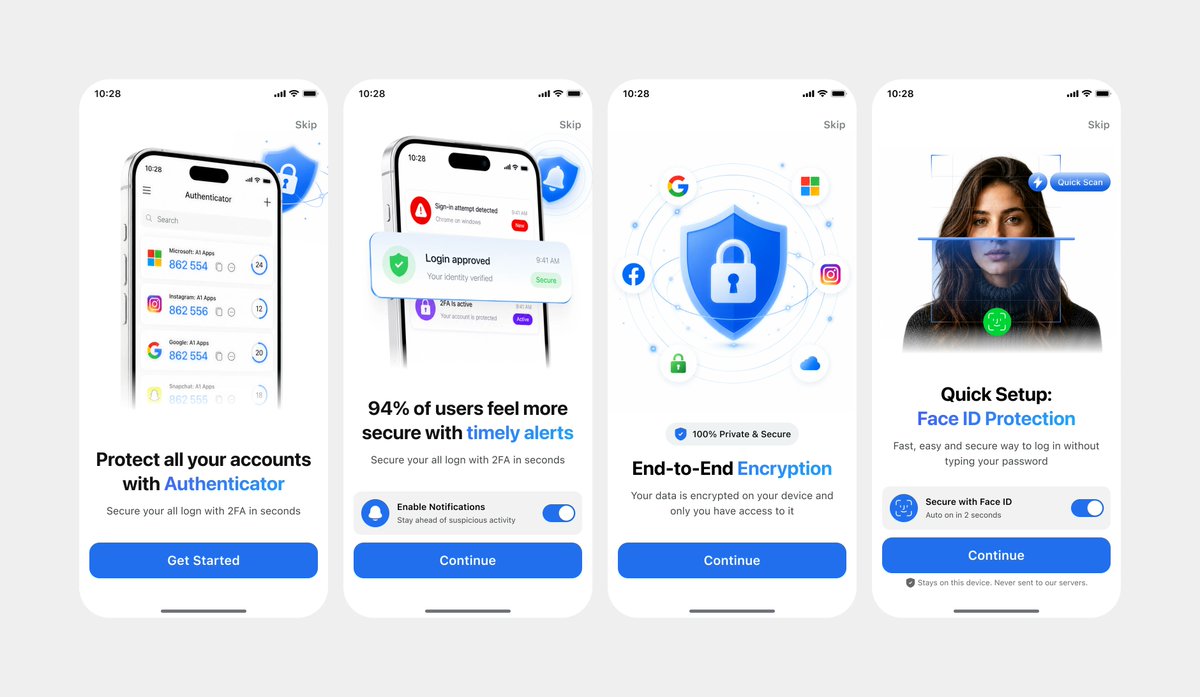
Generates a polished four-screen mobile authenticator onboarding mockup from photographed UI references for app presentation or design iteration.
プロンプト
REFERENCE_1 をプライマリUIリファレンスとして使用し、必要に応じてREFERENCE_0 をダークバリアントの詳細のみに使用して、写真で撮影されたラップトップスクリーンではなく、クリーンで正面から見たデザインモックアップとしてモバイルオンボーディングフローを再現。4つのiPhoneスタイルのスクリーンを抽出してまっすぐにし、すべてのカメラ透視、グレア、ブラウザのクローム、ラップトップのエッジ、周囲の環境を除去し、スクリーンをライトグレーのキャンバスに均等に間隔を置いて配置。同じ白/ライトテーマ、丸い電話カード、青いセキュリティブランディング、タイポグラフィ階層、アイコン、イラスト、CTAスタイルを保持。正確に4つのオンボーディングスクリーンを左から右に作成:1)ヘッドライン「Protect all your accounts with Authenticator」とCTA「Get Started」付きの認証アカウントリスト;2)ヘッドライン「94% of users feel more secure with timely alerts」とCTA「Continue」付きのセキュリティアラート通知;3)ヘッドライン「End-to-End Encryption」とCTA「Continue」付きのシールド/ロック暗号化イラスト;4)ポートレート/スキャングラフィック、ヘッドライン「Quick Setup: Face ID Protection」、セキュアFace IDトグルカード、小さなプライバシーノート、CTA「Continue」付きのFace IDクイックセットアップ。{argument name="プライマリカラー" default="明るい青"} をメインアクセントカラーとして使用し、アプリ名を{argument name="アプリ名" default="Authenticator"} とし、ステータス時間を{argument name="ステータス時間" default="10:28"} と維持。結果を、洗練されたFigmaエクスポート/製品プレゼンテーションのように見え、クリスプで高解像度で、リアルな写真アーティファクトなしで作成。
機械翻訳 — この作品を生成したのは元のプロンプトです。
元のプロンプト
Using REFERENCE_1 as the primary UI reference and REFERENCE_0 only for the darker variant details if needed, recreate the mobile onboarding flow as a clean, front-facing design mockup instead of a photographed laptop screen. Extract and straighten the four iPhone-style screens, remove all camera perspective, glare, browser chrome, laptop edges, and surrounding environment, and place the screens evenly spaced on a light gray canvas. Keep the same white/light theme, rounded phone cards, blue security branding, typography hierarchy, icons, illustrations, and CTA style. Produce exactly 4 onboarding screens from left to right: 1) authenticator accounts list with headline “Protect all your accounts with Authenticator” and CTA “Get Started”; 2) security alert notifications with headline “94% of users feel more secure with timely alerts” and CTA “Continue”; 3) shield/lock encryption illustration with headline “End-to-End Encryption” and CTA “Continue”; 4) Face ID quick setup with the portrait/scan graphic, headline “Quick Setup: Face ID Protection”, secure Face ID toggle card, small privacy note, and CTA “Continue”. Use {argument name="primary color" default="bright blue"} as the main accent color, keep the app name as {argument name="app name" default="Authenticator"}, and keep the status time as {argument name="status time" default="10:28"}. Make the result look like a polished Figma export/product presentation, crisp and high resolution, with no real-world photo artifacts.